Description of Controls
Physical Controls
Power Switch: A red rotary switch located on the side of the main electronics enclosure. Turn clockwise for ON and counter-clockwise for OFF.
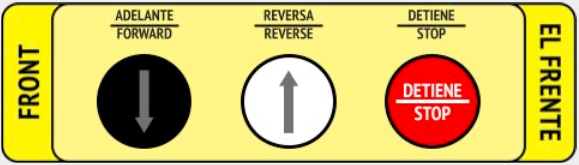
Button Boxes (Front & Rear): Yellow boxes located at the front and rear of the machine containing three buttons. These provide manual control when the Burro is not in an autonomous mode.
Forward (Black Button): Moves the Burro forward in a straight line. Also used to initiate certain autonomous modes or to override obstacle detection (see Section 5.3.3).
Reverse (White Button): Moves the Burro in reverse.
Stop (Red Button): This is an Emergency Stop button. Pressing it will immediately stop all machine motion.
Touchscreen Display & Main Menu
The touchscreen is the primary user interface (UI) for a specific set of operations. After powering on, the main menu will appear, providing access to all modes and settings.
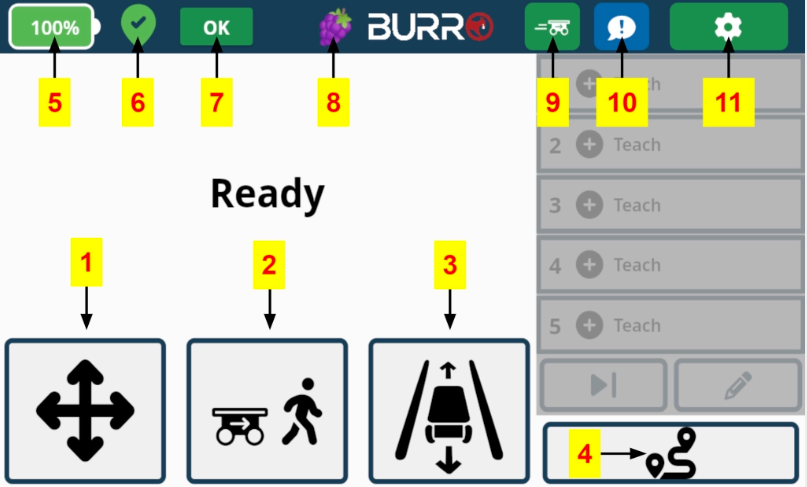
Manual Control: Opens a screen with directional arrows for manual operation.
Person Follow: Activates the mode where the Burro follows a designated person.
Row Navigation (RowNav): Facilitates navigation along designated rows.
Auto Routes: Allows Burro to follow pre-defined routes automatically.
Battery Capacity: Shows the current battery charge level. Tap for more detailed hardware diagnostics.
Localization Status: Indicates the quality of the GPS/LiDAR signal.
Operating Status: Displays if Burro is stopped or paused and the reason for it. See the hierarchy below for more details.
Use-Case Selector: Click to change Burro's working vision model. It is critical to select the correct profile for your environment (e.g., "Nursery," "Grape") as this greatly affects the performance of autonomous navigation.
Advanced Autonomy Shortcut: Click to quickly access Burro’s advanced autonomy features (Central Pack, Docking, etc.).
Issue Reporting: Tap this icon to report a problem or unexpected behavior to Burro support.
Settings: Opens the main settings menu to adjust speed, language, and other parameters.
Operating Status Hierarchy
The Burro can have multiple statuses at once, but only the highest priority status will be displayed. The hierarchy from highest to lowest priority is:
Remote: The remote control is engaged.
Stopped: A critical system fault has occurred.
E-Stop: A stop button or bumper bar has been pressed.
Hill Stop: The machine has stopped due to a steep incline.
Obstacle: An obstacle has been detected.
Slow: Movement has slowed due to a non-critical issue.
Person Follow: The machine is in Person Follow mode.
Map Failed: The worksite map failed to load.
Lost: The Burro is not confident in its location.
Off Path: The Burro is off the DBR map.
Loading: The UI or system is loading.
Active: The Burro is actively traversing a route.
Ready: The system is ready for autonomous operation.