
Get Started
Exploring the interface and getting comfortable with the components.
Welcome to BOSS Web! This Product Tour will walk you through the key components of the interface, helping you navigate and manage your fleet with ease.
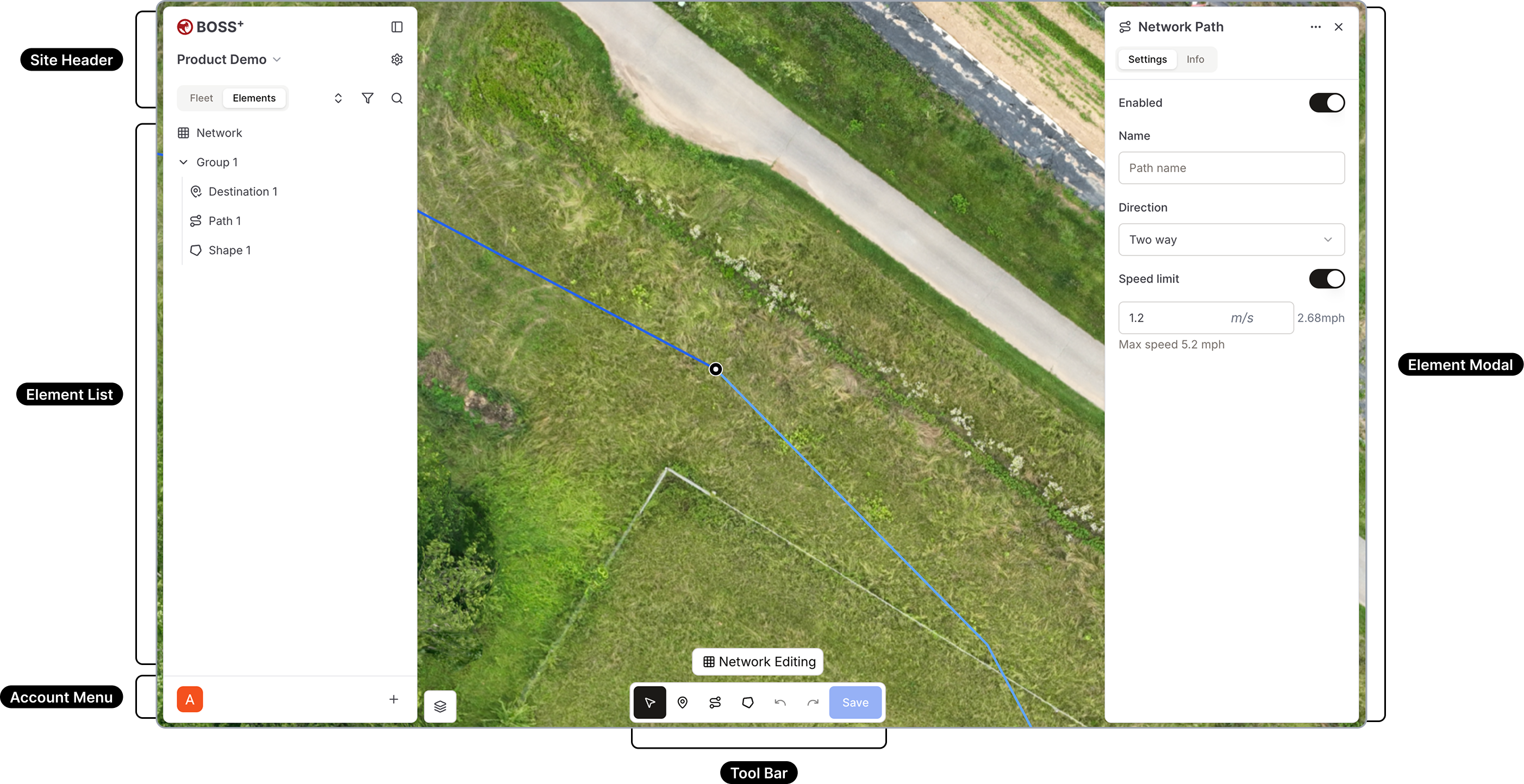
BOSS Web Interface
Top Section
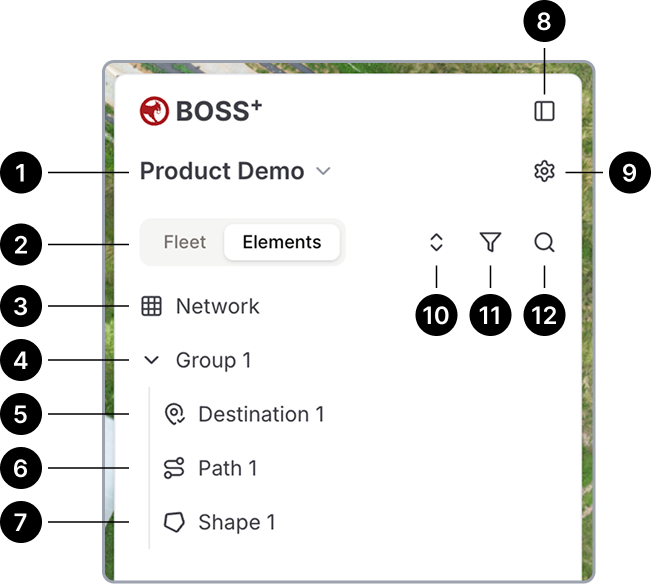
Site Dropdown – Select the site you are currently viewing.
List Toggle – Switch between Elements and Fleet views.
Network – A set of interconnected paths that guide Burro navigation.
Groups – Organizes site elements (excluding networks).
Paths – Traversable lines that Burros use to navigate.
Shapes – Defined map areas used for visualization and future functionality.
Points – Fixed locations on the site map.
Collapse/Open Toggle – Expands or hides the sidebar to maximize workspace.
Site Settings – Manage site-specific settings.
Collapse/Open Groups – Expand or collapse grouped elements.
Filter & Sort – Sort elements alphabetically or filter by type.
Search – Find elements or Burros by name.
Bottom Section
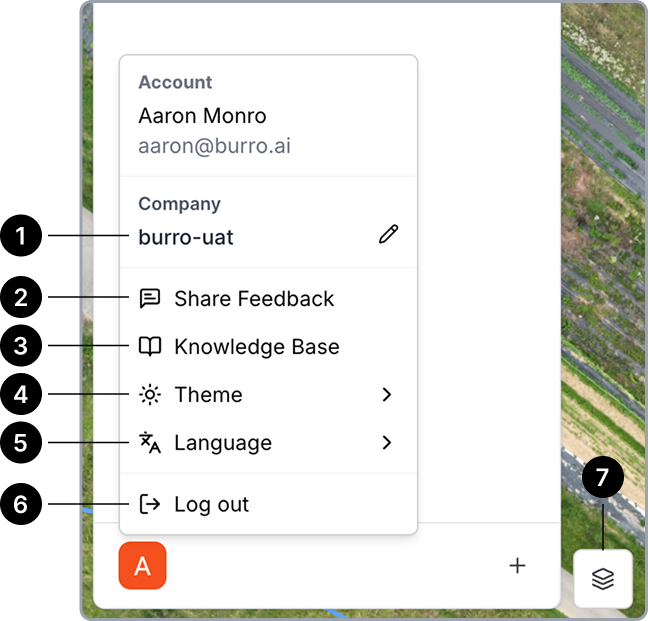
Company – Displays the company under which you are currently operating. This determines fleet and site visibility.
Share Feedback – Let us know how we’re doing!
Knowledge Base / Wiki – The source of truth for all things BOSS Web.
Theme – Customize the visual styling of BOSS Web.
Language – Switch to your preferred language.
Sign Out – Log out of your account.
Layer Settings – Adjust map visualization options.
Toolbar
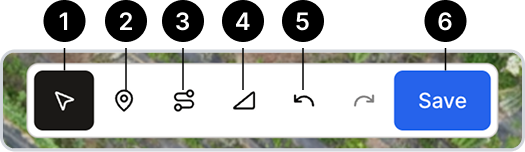
The editing toolbar provides tools for modifying site elements.
Selection Tool – Select and interact with elements.
Points Tool – Add points to a network.
Path Tool – Create paths. If a network is selected, paths are added directly to it.
Shape Tool – Draw polygons on the map.
Undo/Redo – Limited ability to undo recent actions.
Save – Most edits require manual saving.