Overview
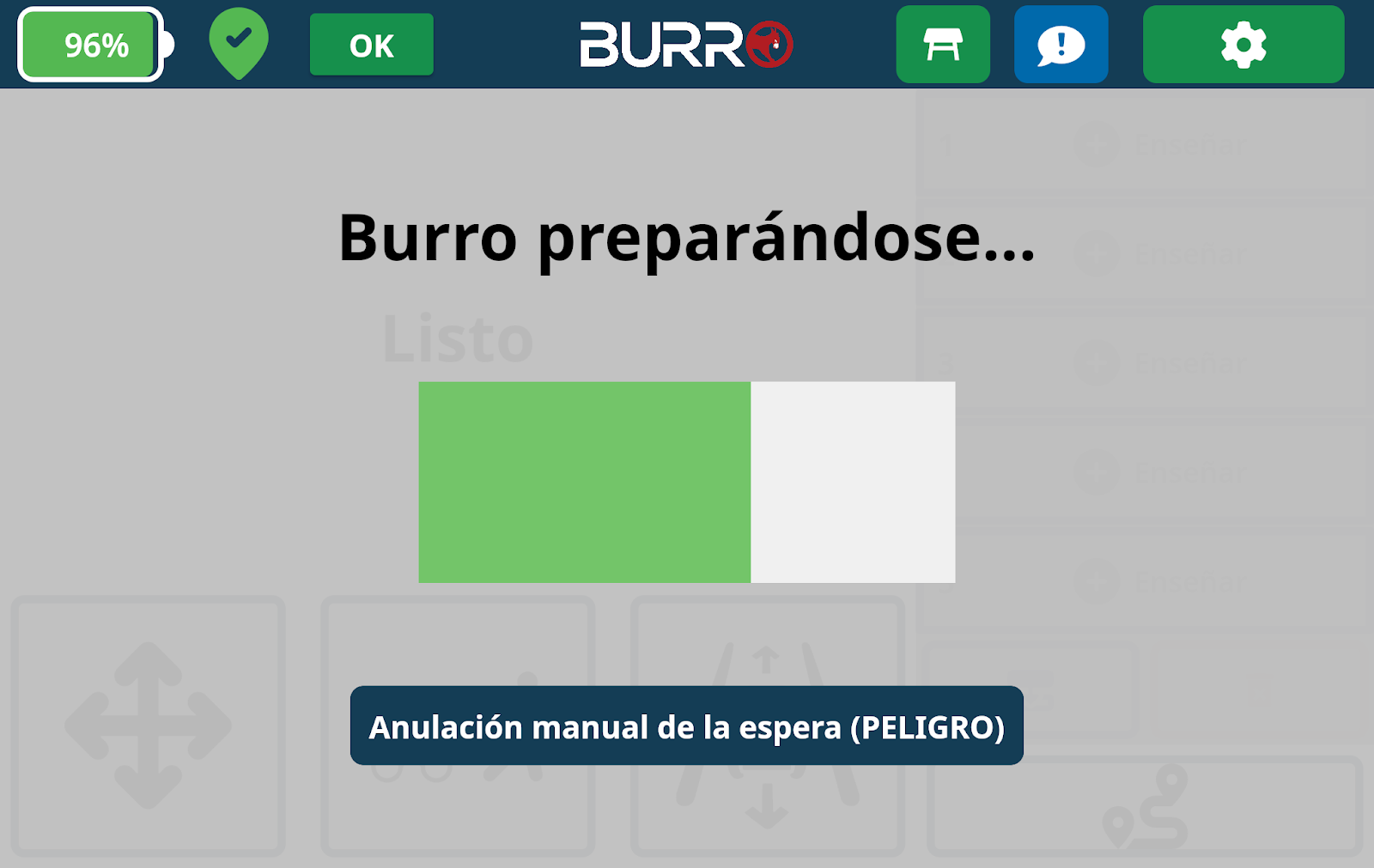
Burro’s main UI will automatically start up approximately 30 seconds after the unit is powered ON.
Main Menu
Once you see the screen displaying the image shown below, your Burro is ready to work!
Manual Control
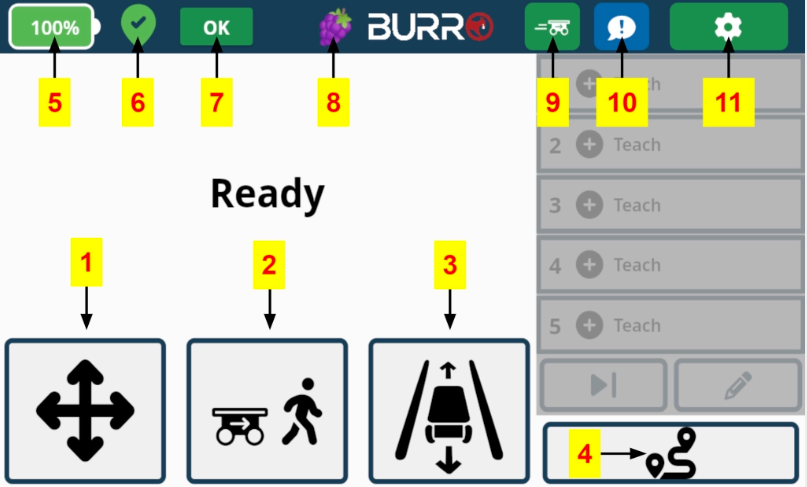
Allows you to operate your Burros manually.Person Follow
Enables Burro to autonomously follow you around.Row Navigation (Row-nav)
Facilitates navigation along designated rows.Auto Routes
Allows Burro to follow pre-defined routes automatically.Statuses & Settings
Click to see hardware status and general diagnostics.Localization Status Icon
Click to view detailed information for RTK GPS, LiDAR, and Vision.Operating Status
Displays if Burro is stopped or paused and the reason for it.Use-Case Selector
Click to change Burro’s working vision model, which affects Row Navigation and Row-to-Row modes.Advanced Autonomy Shortcut
Click to quickly access Burro’s advanced autonomy features (Central Pack, Docking, etc.).Issue Reporting
Click to report an issue or problem with Burro.Settings Menu
Click to open the Settings menu