

Localization
This page provides instructions for checking GPS status, pairing with a Burro Base Station, and configuring GPS settings for optimal performance. Follow the steps below to ensure proper localization for Burro and its variants.
Checking GPS Status
To check the GPS status of your Burro, follow these steps:
Quick View1
Click on the GPS status icon in the top left corner of the main menu to get an overview of the GPS status.
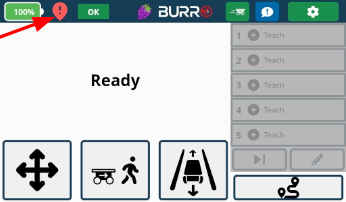
Advanced View2
For adjusting localization methods and base station pairing/re-pairing, navigate to:
Settings → General → GPS
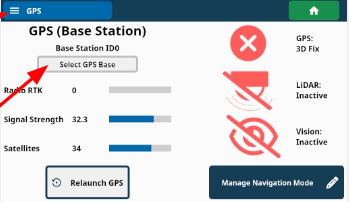
Pairing to a Burro Base Station
Follow these steps to pair your Burro with a base station:
Manage Navigation Mode1
Click the “Manage Navigation Mode” button.
Set GPS Option2
Ensure that GPS is set to the “GPS (Base Station)” option. If it’s not, adjust the setting and press the “Apply Changes” button.
Select GPS Base3
Pair with your base station by using the “Select GPS Base” button.
Enter Base Station Serial Number4
Type the 4 digits of your base station S/N (located on both the base station itself and its yellow carrying case). For example, if the S/N is 3016, enter 3016.
Save the Configuration5
Click ‘Save’. Burro is now paired indefinitely to this base.
Pairing to a Different Base Station6
Repeat this process to pair to a different base station as needed.
GPS Settings for RTK Corrections
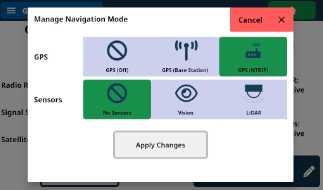
NTRIP is included with Burro Grande’s autonomy.
For units receiving RTK corrections over a cellular connection (LTE):
Ensure that the GPS setting is set to “GPS (NTRIP)” if using Burro & Burro XL for purely indoor operations.
Recommendation: If the area where Burro will be running GPS-trained routes has poor cellular coverage, switch to a Burro base station for RTK over radio.
Training Routes
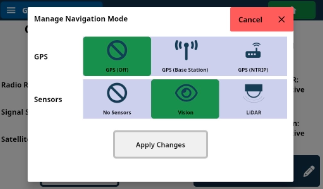
Burro’s passive GPS filter allows for training outdoor routes with some short indoor sections. Use the following guidelines:
Training Routes on Vision
Turn off GPS and train routes using vision.
Burro will learn routes by using recorded images with its back cameras (localization on vision only).
Set GPS to “GPS (Off)” and the Sensors setting to “Vision.”
This method is limited to carrying only in areas with small indoor sections. Towing indoors is only possible with LiDAR.
Indoor Navigation Settings
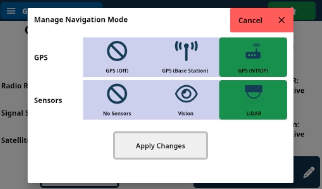
For Burro Grande units and Burro/Burro XL with the Indoor Navigation Pack installed:
The Sensors setting should always be set to “LiDAR” to enable full indoor navigation capabilities for both carrying and towing.
The 3D LiDAR mount that comes with Burro Grande and the Indoor Navigation Pack unlocks seamless indoor navigation.
Seamless Indoor/Outdoor Navigation
For seamless transitions between indoor and outdoor autonomous navigation:
Set GPS to either GPS (Base Station) or GPS (NTRIP) as shown in the relevant images.