
Profiles & Add-Ons
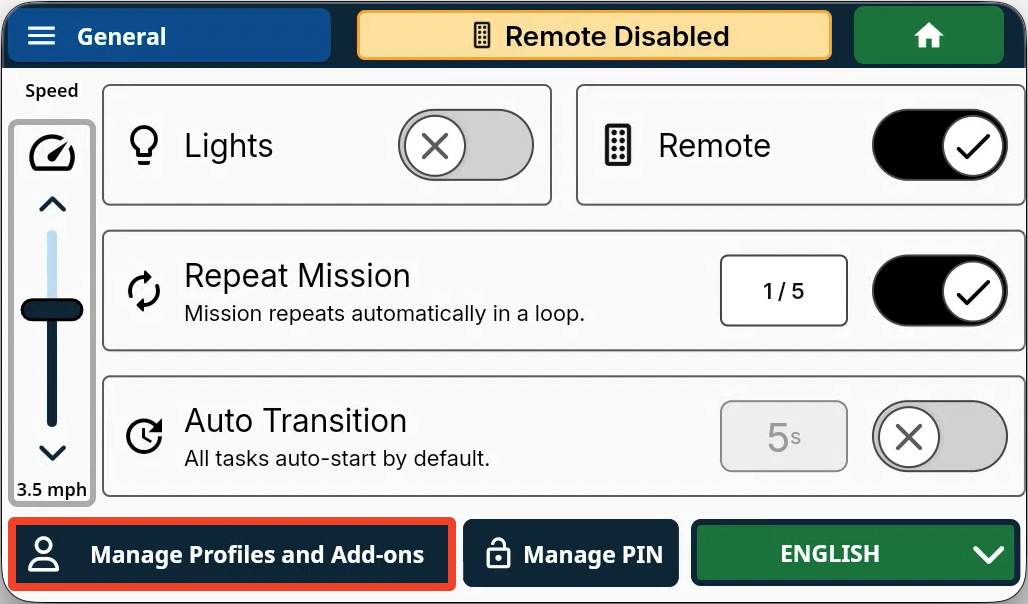
Manage Profiles and Add Ons
On the main settings page, you can open the pop-up menu to handle either workflow changes or hardware/accessory changes to your Burro:
Examples include:
Installing or removing a Burro accessory (e.g., the XL Kit or Burro GRANDE Retrofit).
Changing to a different wheel or tire type.
Updating Profiles
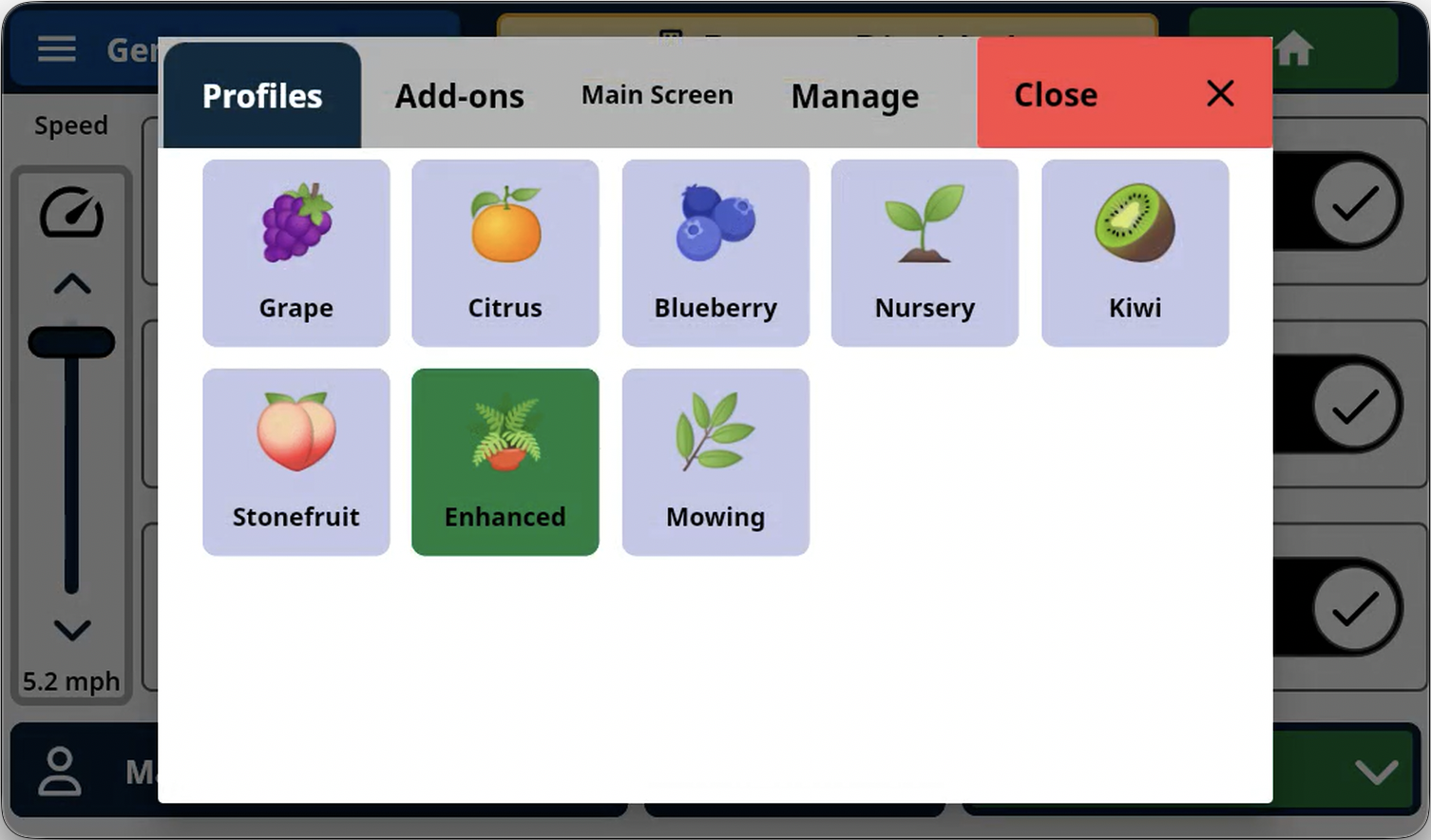
Profiles allow you to configure Burro’s behavior based on your specific use case or workflow to ensure optimal performance. Each profile is calibrated for a particular task or crop type.
Examples:
When performing Mowing operations, select the Mowing model.
When performing Harvest operations in Blueberries, select the Blueberry model.
It is important to switch the profile whenever you change your use case. The selected profile communicates to Burro what task you intend to perform, allowing it to adjust its behavior around obstacles, foliage, and row structures accordingly.
After selecting the appropriate model:
Click Apply Changes.
Relaunch the UI (you do not need to restart the robot).
This ensures that all changes are properly applied and active.
Impact of Selected Profiles
The selected profile affects Burro’s autonomous performance in the following areas:
Row Navigation
Row-to-Row Transitions
Obstacle Handling
While differences in obstacle handling are minimal between profiles, the impact on Row Navigation and Row-to-Row operation is significant.
Example
Selecting an incorrect profile for your environment may result in degraded performance. For example, using the Grape model in Blueberry rows can lead to:
Frequent or unnecessary stops
Improper centering within rows
Missed or misidentified row ends
Add Ons
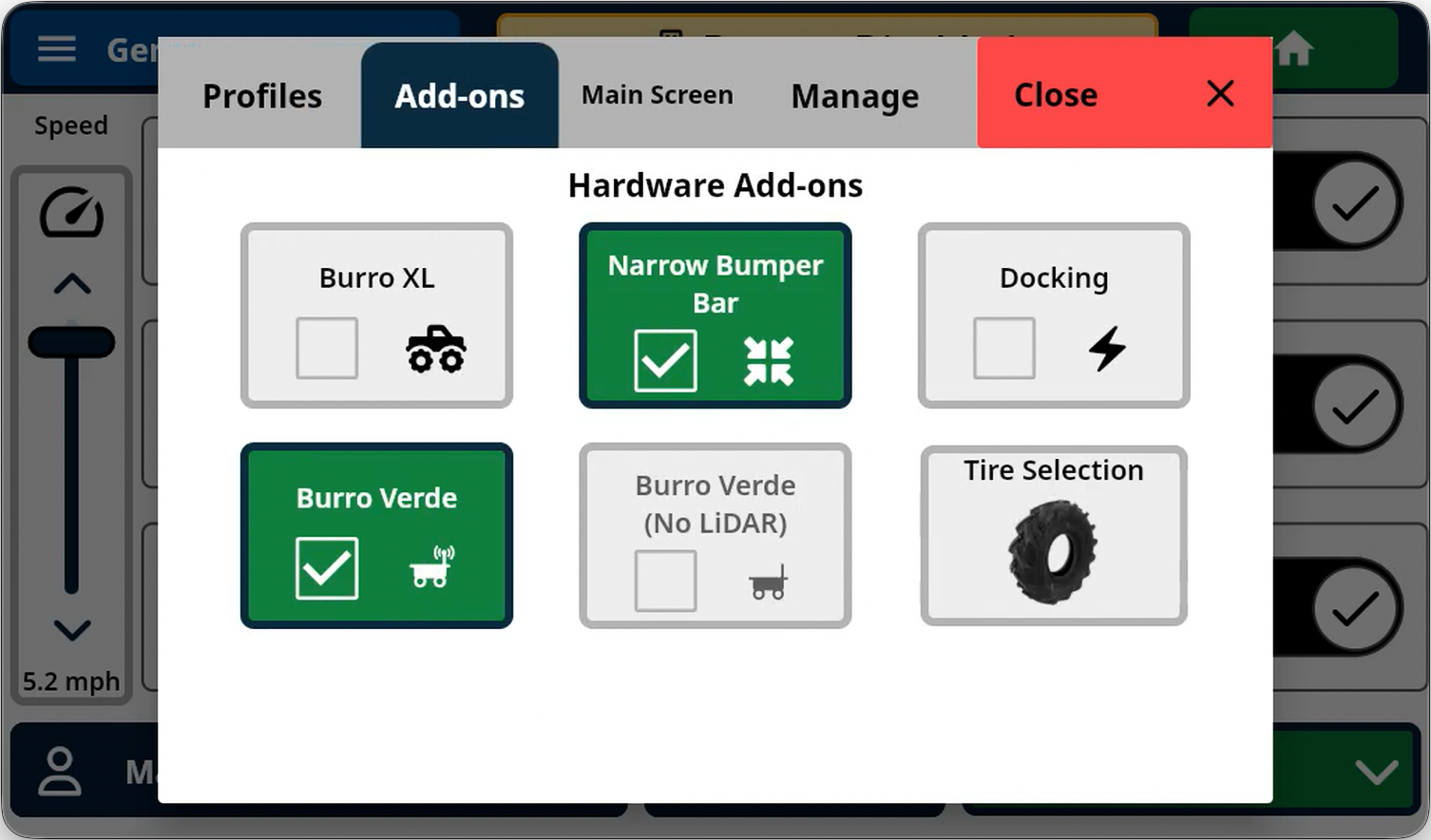
The add-ons menu is how you tell the robot about the hardware changes that you’ve made to the robot. This includes the ability to have official attachments eg: Cortador, XL tow-pack. etc. You can also start to update the tire
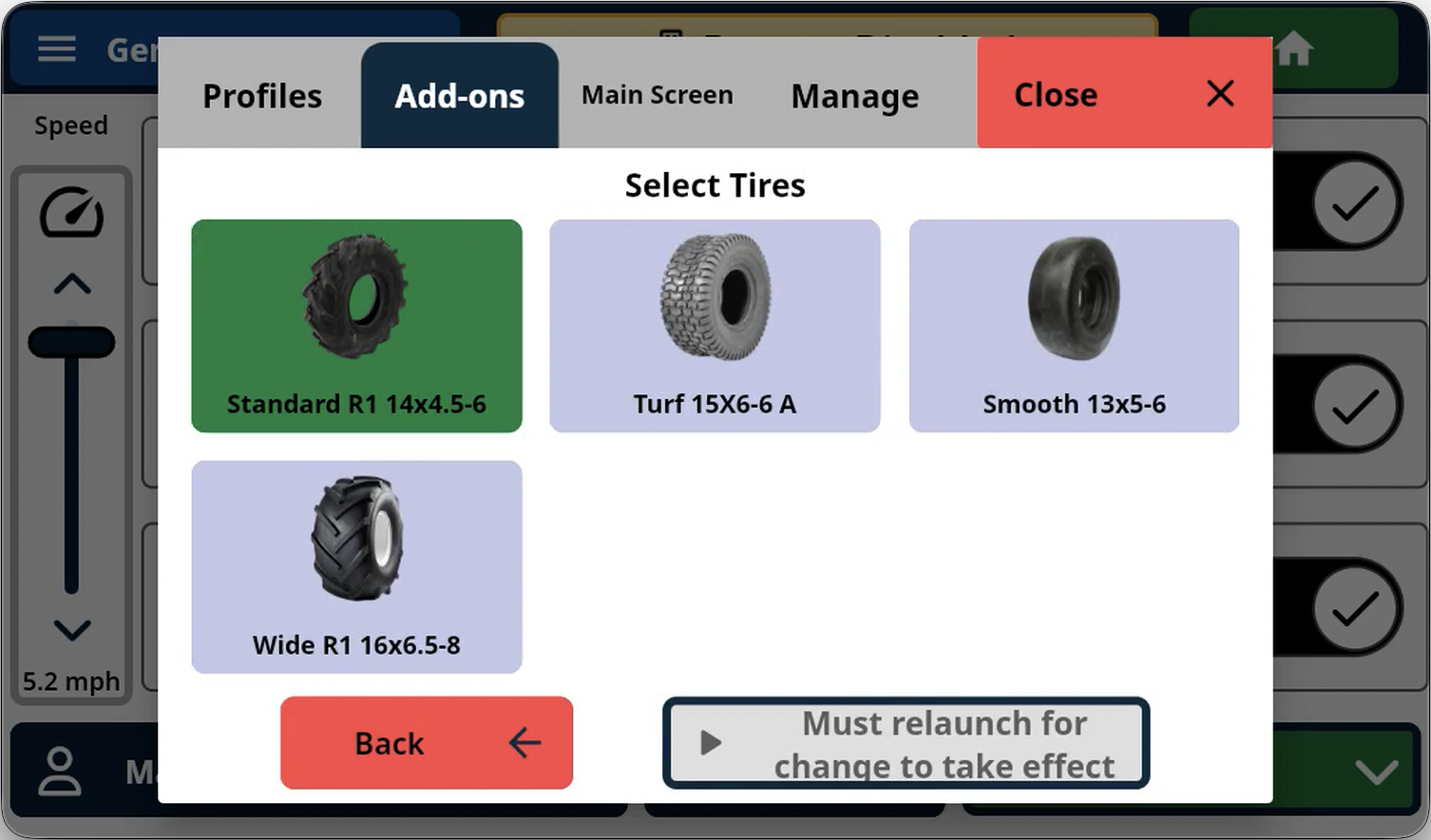
Tire selection
Use this menu to select the tires that you’re using on the robot.
Only official Burro‑approved tires are currently supported. Using unsupported tires may result in inaccurate wheel odometry, navigation deviations, or other undesirable robot behavior.
If your setup requires a tire type that is not listed among the supported options, please contact your assigned Customer Success Representative or email us at support@burro.ai to request the addition of appropriate tire support.
UI switcher
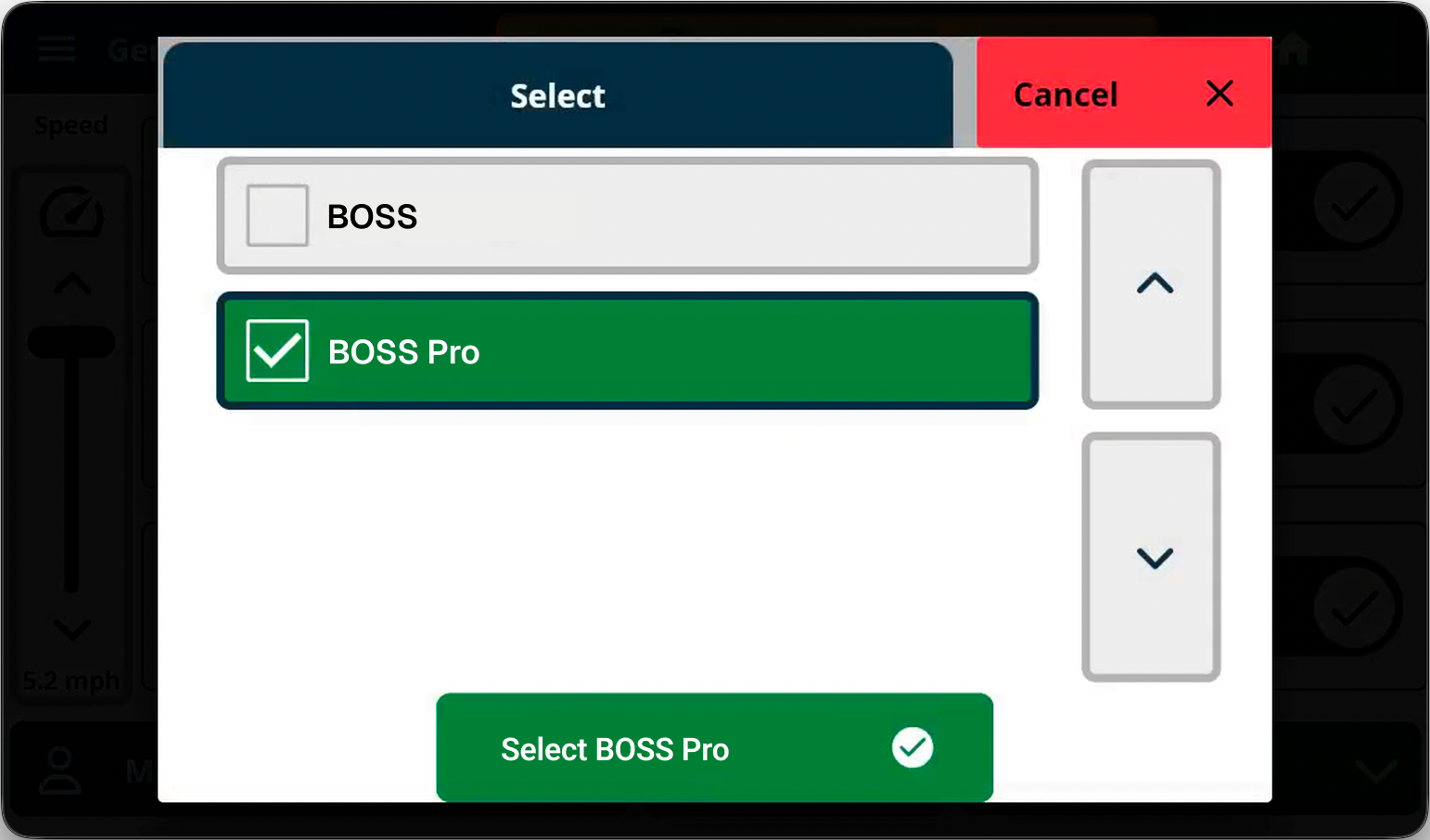
Use this menu to switch between our operating systems BOSS Pro and BOSS.