
Overview
General overview of the settings page on BOSS Pro
Settings page
Here’s where you can manage all the settings for your Burro.
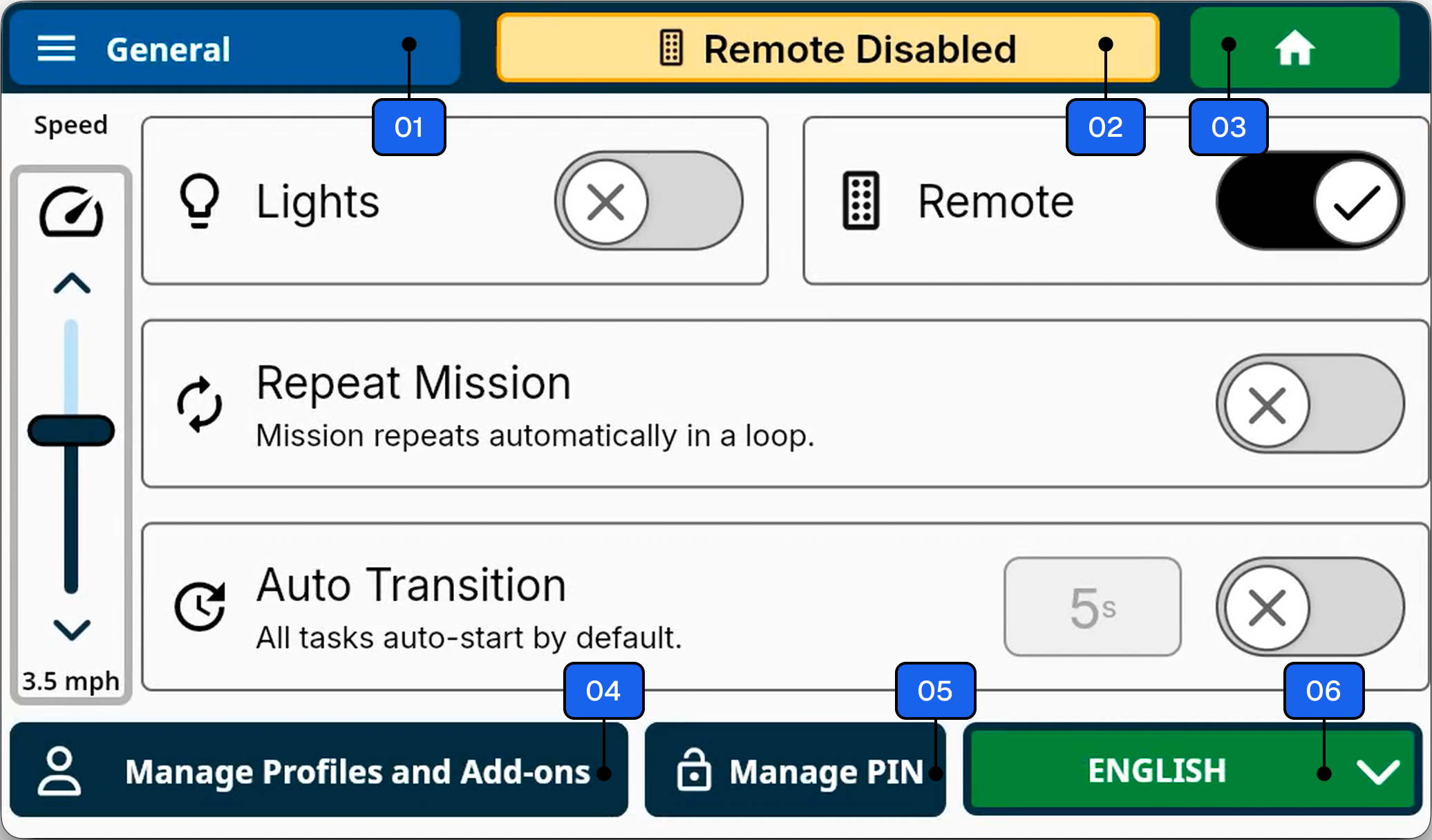
1. General
The General section provides access to the main settings categories, allowing you to navigate between sub-menus such as Advanced, Developer, and GPS. Use this area primarily for basic configuration unless otherwise directed.
2. Remote Status
This banner displays the connectivity status of the remote control paired with your Burro.
A connected status indicates active communication between the remote and the Burro.
A disconnected status means the remote is not currently turned off or not connected.
3. Home
Select the Home button to exit the settings page and return to the main home screen.
4. Manage Profiles and Add-ons
Use this section to update Burro’s configuration when you make hardware or accessory changes.
Examples include:
Installing or removing a Burro accessory (e.g., the XL Kit or Burro GRANDE Retrofit).
Changing to a different wheel or tire type.
Keeping this configuration up to date ensures optimal operation and system accuracy.
Only official accessories and add-ons are supported for use with Burro.
5. Manage Pin
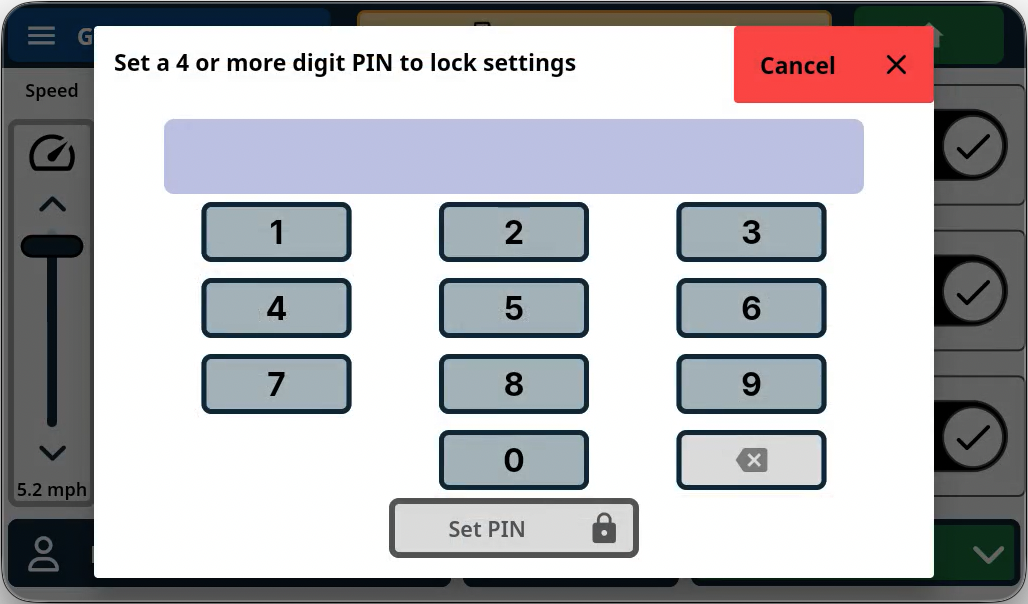
This feature allows you to restrict access to the settings menu with a PIN (Personal Identification Number).
Set a PIN to prevent unauthorized users from modifying system settings.
Remember your PIN to avoid being locked out.
For convenience, we recommend using your robot’s identification number or a recognizable combination.
6. Language switcher
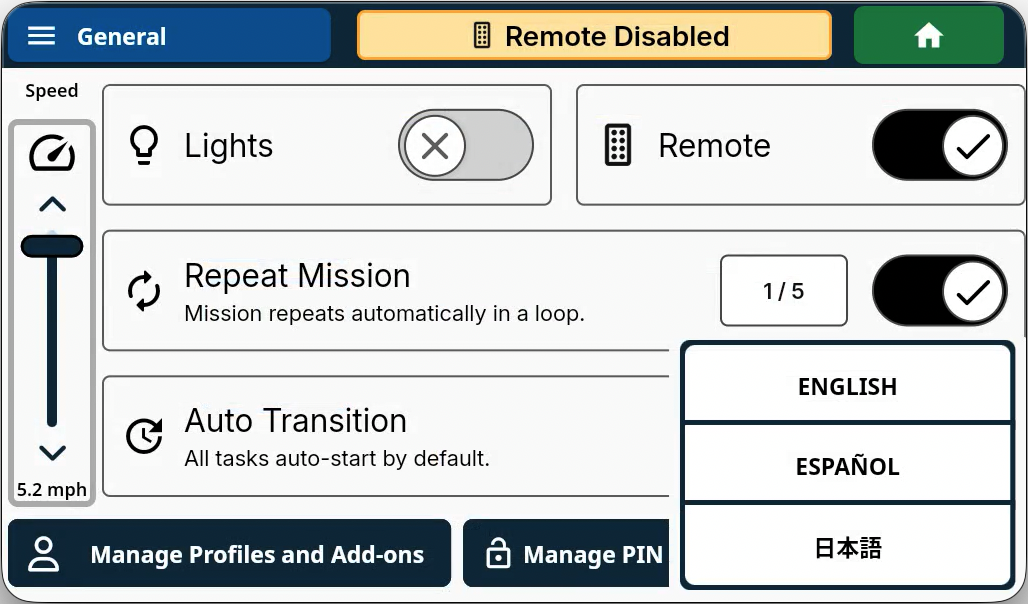
Use the Language Switcher dropdown to change the system’s default display language.
Available options: English, Spanish, and Japanese.